
Configure and operate the shared Inbox
Connect approved email accounts, triage conversations, compose safely, and recover from sync or authorization failures.
Who can do this
Organization admin for setup; granted Inbox users for daily work
Primary route
/inbox
Last verified
4 August 2026
- An organization-managed email account
- Provider authorization approved by the account owner
- A clear rule for who may read, draft, and send
01
Connect an email account
Open Settings → Email Accounts, choose the provider connection, and authorize only the mailbox and scopes needed for the operating team.
- Confirm the active organization.
- Open Settings → Email Accounts.
- Start the provider authorization flow.
- Sign in as the intended mailbox owner and review requested scopes.
- Return to the platform and confirm the account shows connected.
- Open Inbox and wait for initial sync before treating counts as complete.
02
Triage the mailbox
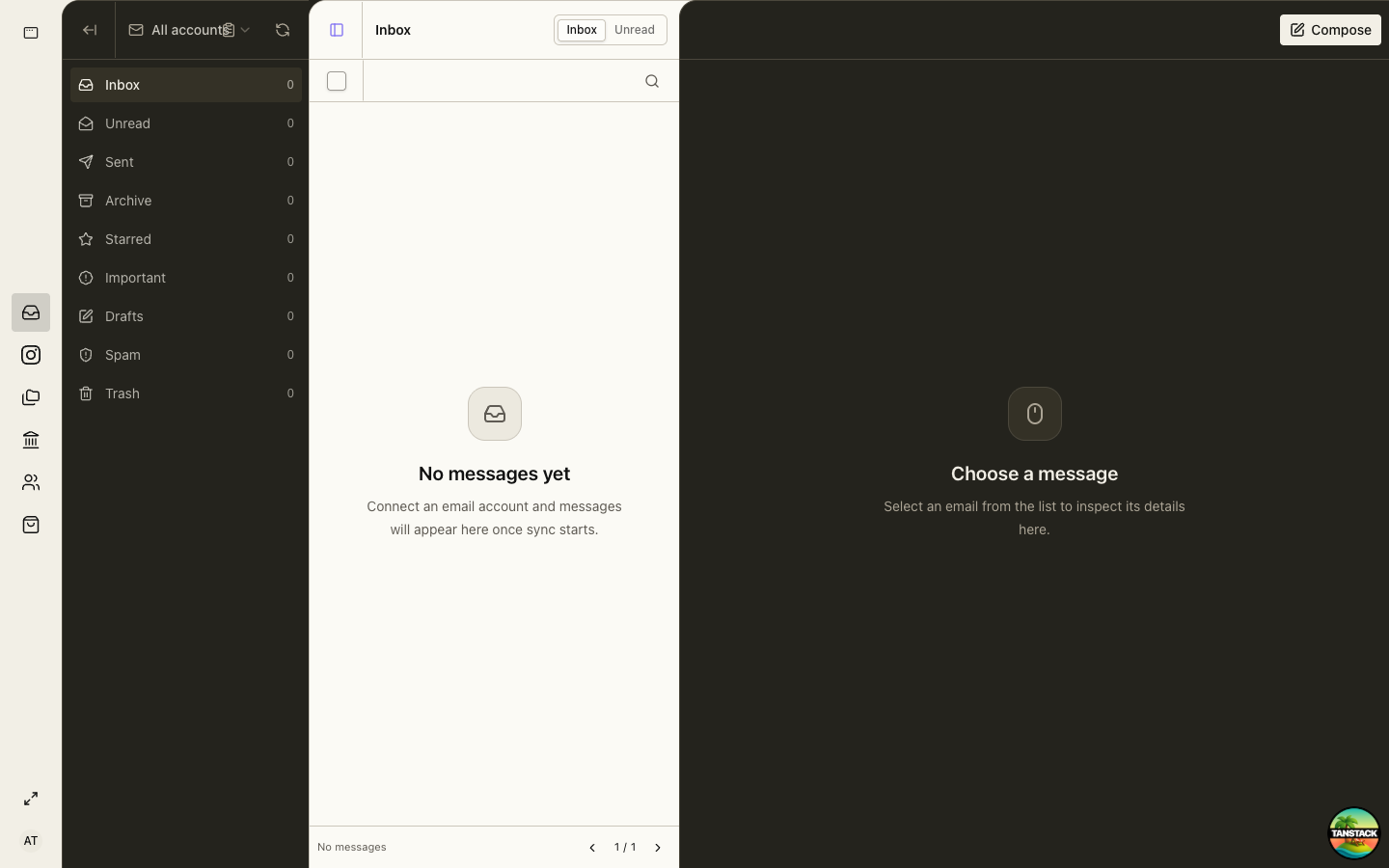
Use Inbox, Unread, Starred, Important, Sent, Drafts, Archive, Spam, and Trash to separate action from retention.
- Select the correct account from the account switcher.
- Open the message and read the full thread.
- Star or mark important only when it changes team follow-up.
- Reply, archive, or leave unread according to the team’s ownership rule.
- Confirm the message appears in Sent after sending.
03
Compose and send
Check recipients, organization identity, attachments, and the complete thread before sending.
Never paste API keys, government credentials, payroll files, or unnecessary personal data into an email.
04
Rotate or disconnect access
Remove access when a mailbox changes owner, credentials are revoked, or the provider connection is no longer approved. Confirm queued drafts and ownership before disconnecting.
Troubleshooting
- No messages appear: verify the selected account, connection state, provider consent, and sync completion.
- Send fails: keep the draft, verify provider authorization, and retry once after the connection is healthy.
- A mailbox is visible to the wrong role: remove the Inbox page grant and review recent access in the audit trail.