
Launch an organization workspace
Choose the correct workspace, complete the legal organization record, secure administrator accounts, and verify launch readiness.
Who can do this
Organization Owner or Organization Admin
Primary route
/organization
Last verified
4 August 2026
- Legal name, UEN, registered address, tax residency, and reporting currency
- A named owner for Finance, HR, integrations, and compliance
- Separate named accounts for every administrator
01
Select the organization before entering data
The account menu shows the active workspace. If you belong to more than one organization, switch to the intended legal entity first; every record, permission, integration, and filing is tenant-scoped.
- Open the account menu from the lower-left profile control.
- Choose Switch organization.
- Select the legal entity you intend to administer.
- Confirm the entity name in the module header before continuing.
Do not use the active navigation as proof that you are in the correct entity. Confirm the organization name explicitly before importing or connecting anything.
Expected result: The selected organization name appears in the workspace and module headers.
02
Complete the organization profile
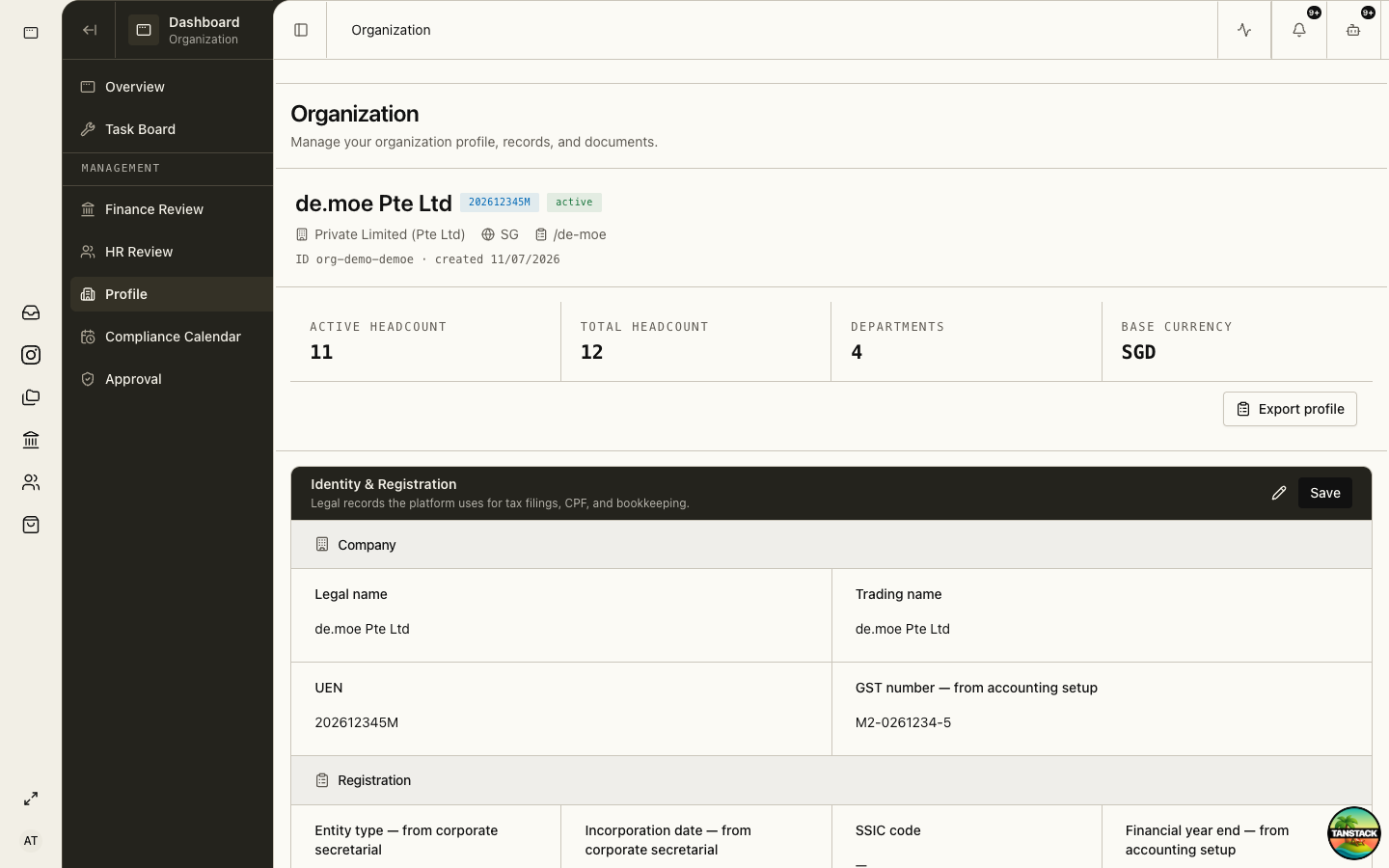
The profile is shared by Finance, HR, statutory workflows, and compliance. Complete authoritative fields once instead of recreating conflicting copies inside each module.
- Open Organization from the Dashboard management rail.
- Complete Identity & Registration: legal name, trading name, UEN, entity type, incorporation date, SSIC, and financial year end.
- Complete Contact & Address, including registered and operating addresses.
- Complete currencies, tax residency, banker, tax cadence, CPF submission number, and agency references.
- Upload supporting ACRA, IRAS, CPF, bank, and licence documents to the matching document category.
Expected result: Finance and HR setup checklists recognize the shared organization fields as complete.
03
Secure administrator accounts
Use named accounts so approvals and configuration changes remain attributable.
- Open Settings → Organization → General.
- Set a unique password and enable two-factor authentication.
- Keep at least two active administrators for continuity, but grant admin status only where required.
- Never place API keys in profile notes, chat, email, screenshots, or shared documents.
04
Run the launch check
Verify the workspace with both an administrator and an ordinary member before live data arrives.
- Confirm the Dashboard, Organization, Finance, HR, and Compliance pages load for the admin.
- Sign in as a normal member and confirm only assigned modules and pages appear.
- Run one representative draft through preparation, review, approval, and audit history.
- Record the cutover date and the former system that stops receiving new entries.
Expected result: The normal member can complete assigned work without receiving administrative or unrelated module access.
Troubleshooting
- Wrong company data appears: use the account menu to switch organization, then reload.
- A module is missing: check Billing/module entitlement first, then the person’s role permissions.
- A setup checklist remains incomplete: follow its link back to Organization or the module settings page; do not duplicate the value elsewhere.