
Configure appointments, capacity, and the live queue
Define appointment types and resources, create bookings, manage delays and extensions, and run check-in through service completion.
Who can do this
Booking manager or organization admin
Primary route
/booking
Last verified
4 August 2026
01
Set up capacity before taking bookings
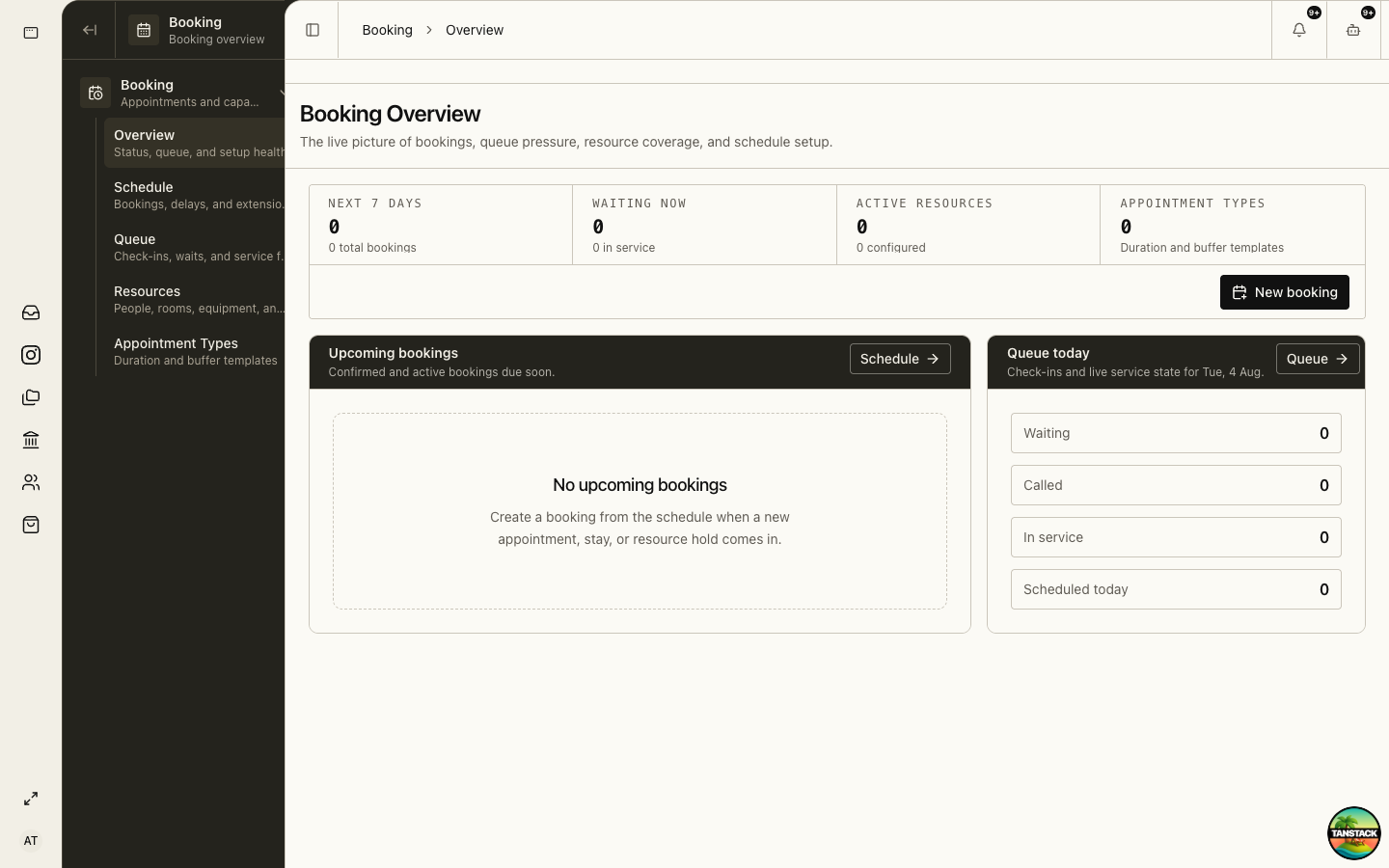
Create appointment types and resources first. Appointment types define duration and buffers; resources define the people, rooms, or equipment that provide capacity.
- Open Booking → Appointment Types and define duration and buffers.
- Open Booking → Resources and add available people, rooms, or equipment.
- Confirm active status and any capacity limits.
- Return to Overview and check setup health.
02
Create a booking
Choose the appointment type, customer, start time, resource, and any operational notes. Resolve conflicts before confirmation.
03
Manage the schedule
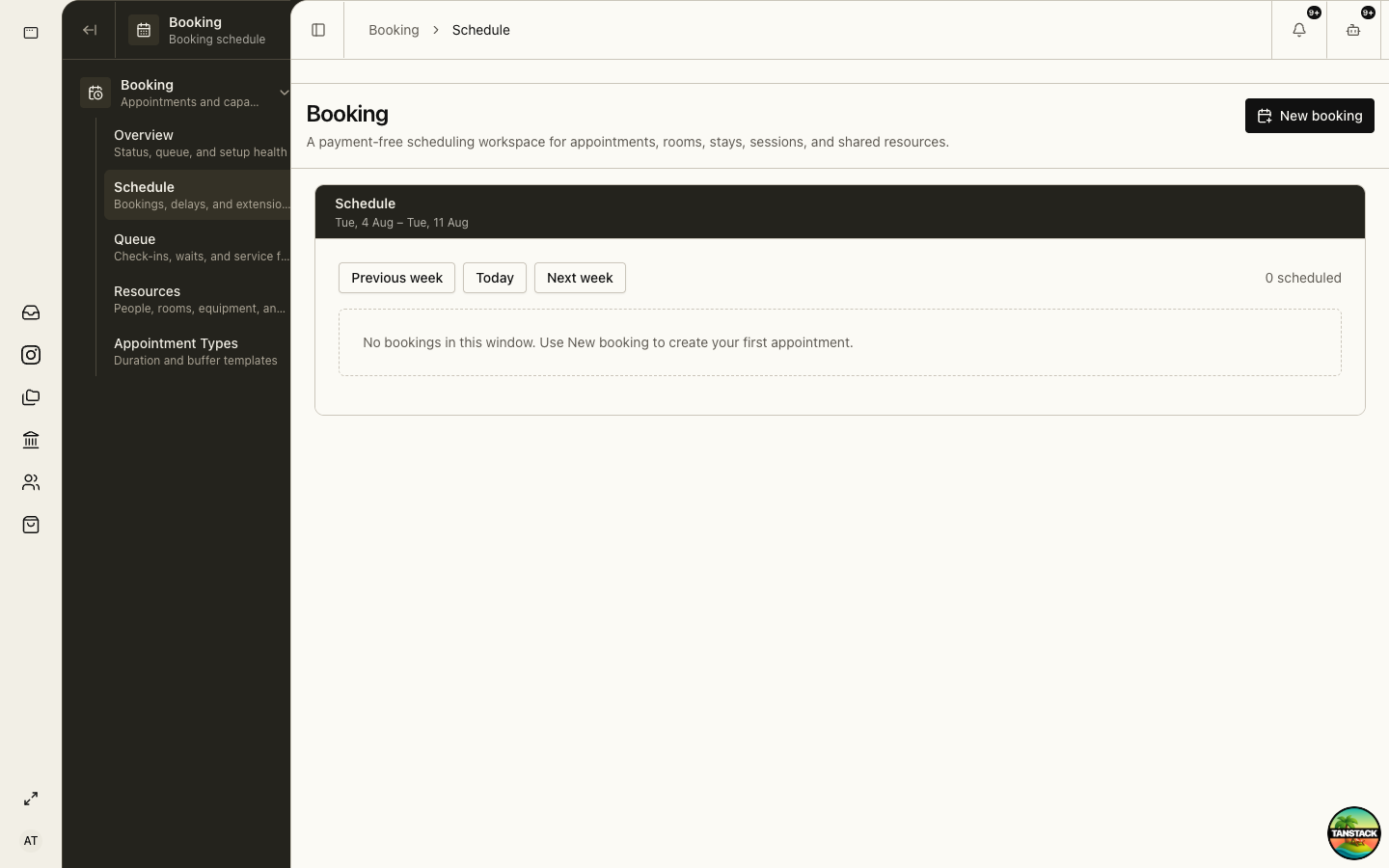
Use Schedule for bookings, delays, and extensions. Reassign or extend only after checking downstream capacity.
04
Run the live queue
Check the customer in, call them, start service, and complete once. Keep no-shows, cancellations, and re-entries distinct.
05
Handle delays and extensions
Record the reason and expected impact, update affected customers, and prevent one extension from silently overbooking the next slot.
Troubleshooting
- No time is available: verify active resources, appointment duration, buffers, and conflicts.
- A checked-in customer is missing from Queue: confirm date, status, and organization before creating another booking.
- An extension causes overlap: reassign capacity or reschedule the affected booking with an audit note.