
Use employee self-service
Check your profile, schedule, time, leave, claims, payroll, and documents while keeping sensitive changes attributable.
Who can do this
An organization member linked to an HR employee record
Primary route
/hr/me
Last verified
4 August 2026
01
Start from Me
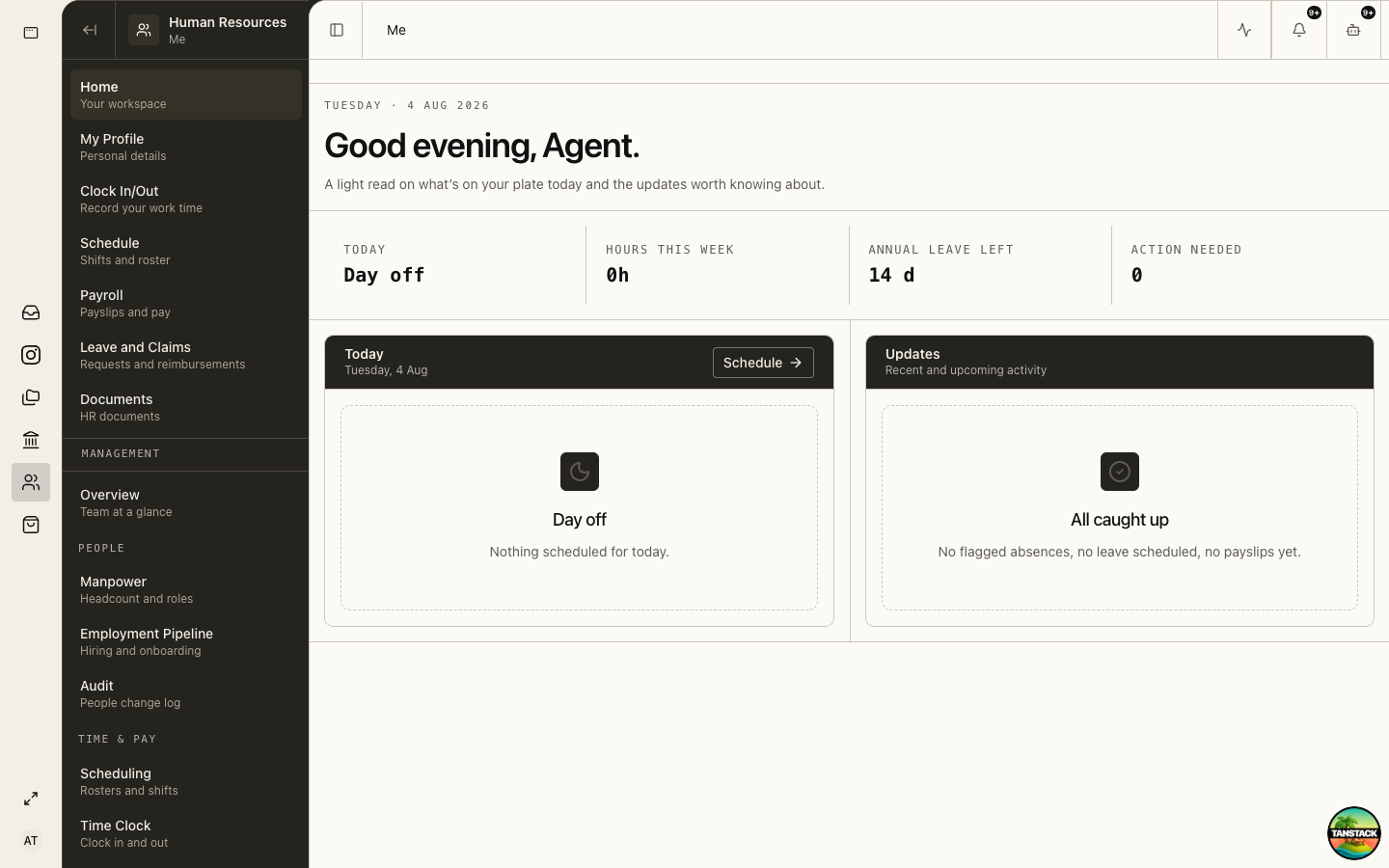
Me is your personal HR workspace. It shows today’s schedule, hours, leave balance, and updates without exposing manager-grade HR records.
02
Review your profile and protected details
Open Me → My Profile. Update fields you are permitted to maintain and contact HR for protected identity, employment, CPF, pay, or bank changes.
Do not place NRIC, bank details, medical evidence, or payroll information in chat or general notes.
03
Use Clock In/Out and Schedule
Record work time against the correct date and location, then review the result before the period closes.
- Open Me → Clock In/Out at the start and end of work.
- Use Me → Schedule to review assigned shifts and open work.
- Report a missed or incorrect entry through the supported correction path.
- Do not create extra clock events to compensate for an error.
04
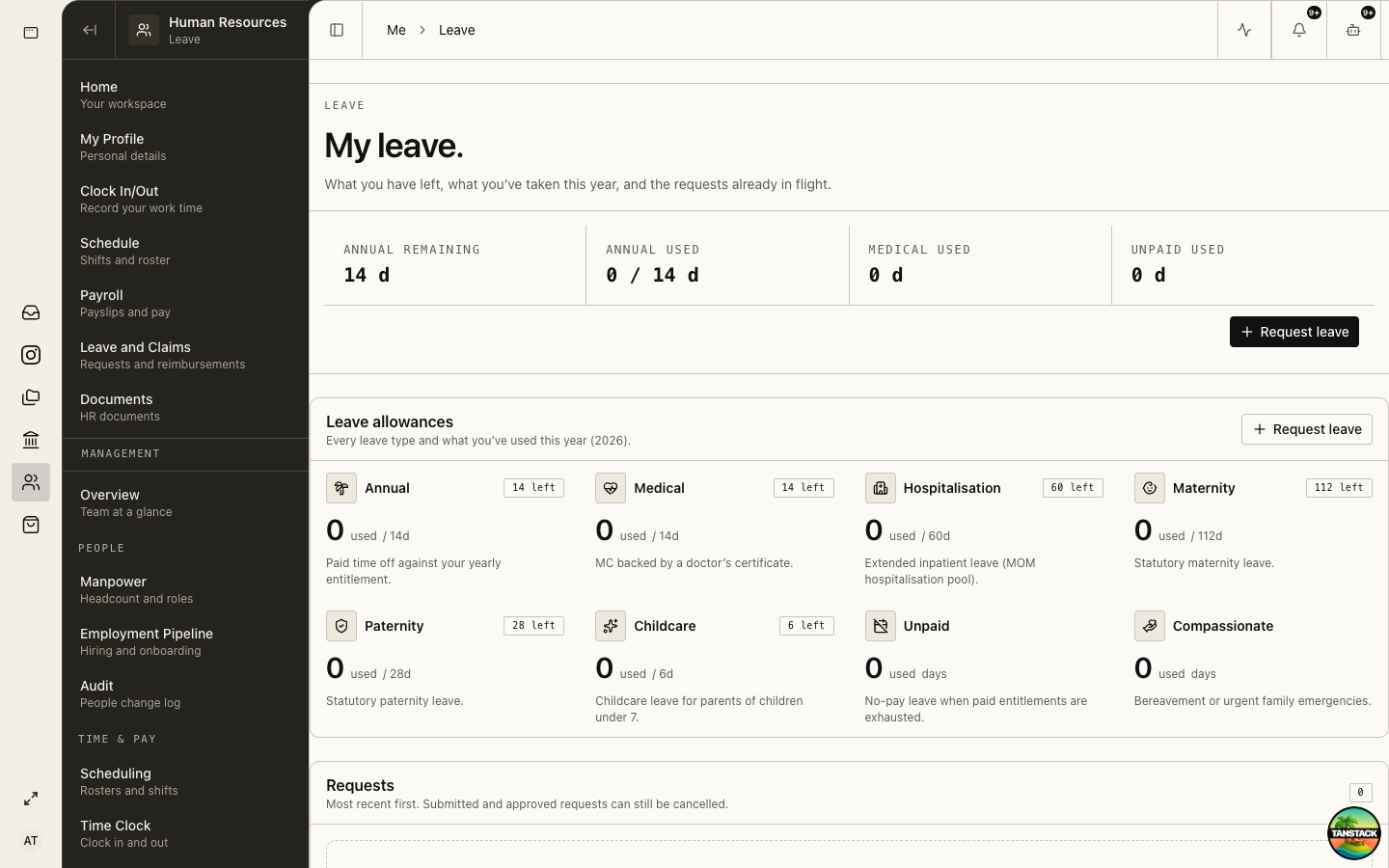
Submit and follow leave
Use the existing request history to avoid overlapping or duplicate requests.
- Open Me → Leave and Claims → Leave.
- Choose leave type and dates, then review the calculated duration.
- Attach evidence only where policy requires it.
- Submit and follow the same request through returned, approved, or rejected status.
05
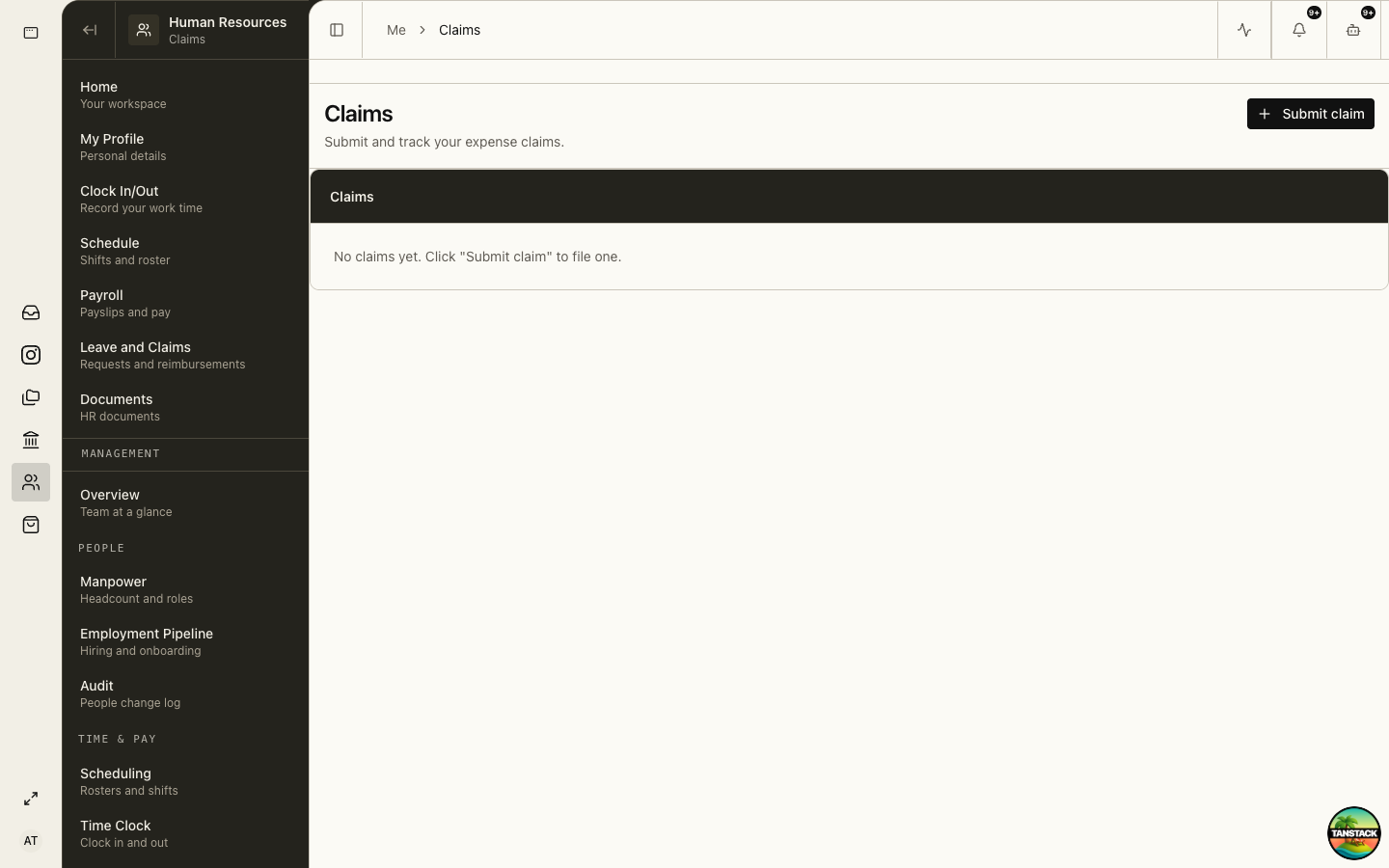
Submit and follow claims
A claim should describe the business expense and carry legible evidence.
- Open Me → Leave and Claims → Claims.
- Choose the claim type, transaction date, currency, amount, and business purpose.
- Attach the receipt or required supporting document.
- Review the amount and submit.
- Follow the existing claim status and respond to the reviewer’s stated reason.
06
Review payroll and documents
Use Me → Payroll for published payslips and Me → Documents for assigned HR documents. Report discrepancies privately to HR before relying on the record.
Troubleshooting
- Me is empty or shows account-only profile: ask HR to link your user account to the correct employee record.
- Leave balance looks wrong: verify leave type, effective dates, approved history, and policy with HR.
- A claim was returned: update the existing claim using the stated reason and resubmit.